 TensorFusion Docs
Kubernetes Install
Install TensorFusion on an existing Kubernetes cluster with Helm and connect it to the TensorFusion Console
This guide installs TensorFusion on a Kubernetes cluster you already run and connects the cluster to the TensorFusion Console. You run one Helm command, confirm the cluster configuration in the console, then deploy a small LLM on a vGPU and run an inference.
If you don't want the cluster to connect to the console, follow Helm Quick Install instead. If you only have bare servers or VMs, first create a K3s cluster.
Prerequisites
-
A Kubernetes cluster with at least one NVIDIA GPU node. For other accelerator vendors, see Helm Quick Install.
-
The NVIDIA driver is installed on every GPU node, and the container runtime can mount GPU devices. Most managed Kubernetes services set this up for you. On self-managed nodes, install the NVIDIA Container Toolkit.
-
Every GPU node has the label
nvidia.com/gpu.present=true. TensorFusion does not add this label; the NVIDIA GPU Operator or GPU feature discovery does. Check it, and add it yourself if no node is listed:kubectl get nodes -l nvidia.com/gpu.present=true kubectl label node <gpu-node-name> nvidia.com/gpu.present=true -
kubectlandhelmon your machine, with permission to create a Namespace, CRDs, ClusterRoles and a MutatingWebhookConfiguration. -
Nodes can pull images from Docker Hub, and the cluster can open outbound connections to
app.tensor-fusion.ai. No inbound access is needed.
Step 1. Install TensorFusion
-
Sign up and open the TensorFusion Console.
-
In the onboarding wizard, choose Connect existing Kubernetes and copy the install command. It already contains the enrollment token and agent ID of your environment:
helm upgrade --install --create-namespace --namespace tensor-fusion-sys \
  --repo https://download.tensor-fusion.ai \
  --set agent.enrollToken=<enroll-token> \
  --set agent.agentId=<org-id>:<environment-name> \
  tensor-fusion-sys tensor-fusion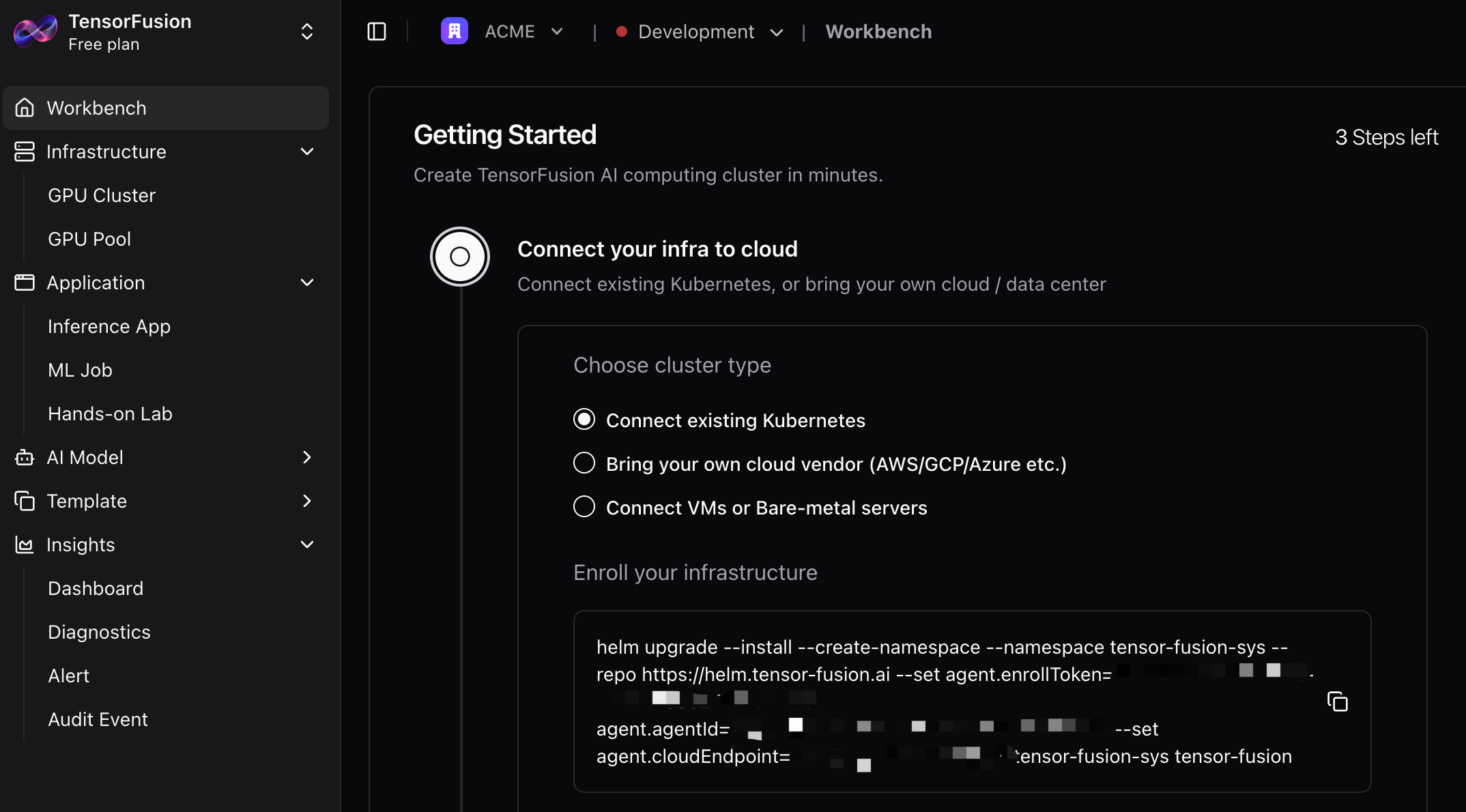
-
Run the command against your cluster.
The command installs the following:
| Component | Where |
|---|---|
| TensorFusion CRDs and RBAC | Cluster-wide |
Controller (operator, Pod webhook and scheduler in one Deployment), with the cluster-agent sidecar that connects to the console | Namespace tensor-fusion-sys |
| Alertmanager | Namespace tensor-fusion-sys |
| GreptimeDB standalone, which stores metrics inside the cluster | Namespace greptimedb |
A default TensorFusionCluster named tensor-fusion with one GPUPool named tensor-fusion-shared, an NVIDIA ProviderConfig, and a SchedulingConfigTemplate | Cluster-wide |
The agent keeps one outbound WebSocket connection to the console. Metrics stay in the cluster's GreptimeDB.
To change chart values, see the Helm values reference.
Install from mainland China
If your nodes cannot pull from Docker Hub, quay.io or registry.k8s.io reliably, append the mirror values file to the command:
-f https://download.tensor-fusion.ai/values-cn.yamlThis file switches the operator, agent, GreptimeDB, Vector, Alertmanager and webhook certificate images to mirror registries. It does not change the hypervisor, vGPU provider, client and worker images, which are still pulled from tensorfusion/* on Docker Hub. For those, configure a registry mirror in your container runtime, or override cluster.hypervisorImage and providerConfigs.nvidia.images.* with images from a registry your nodes can reach.
Step 2. Create the cluster in the console
When the console shows the agent as connected, fill in the cluster form, click Preview and Deploy, review the generated manifests, and click Confirm Deploy. The console applies the TensorFusionCluster and its scheduling configuration to your cluster through the agent.
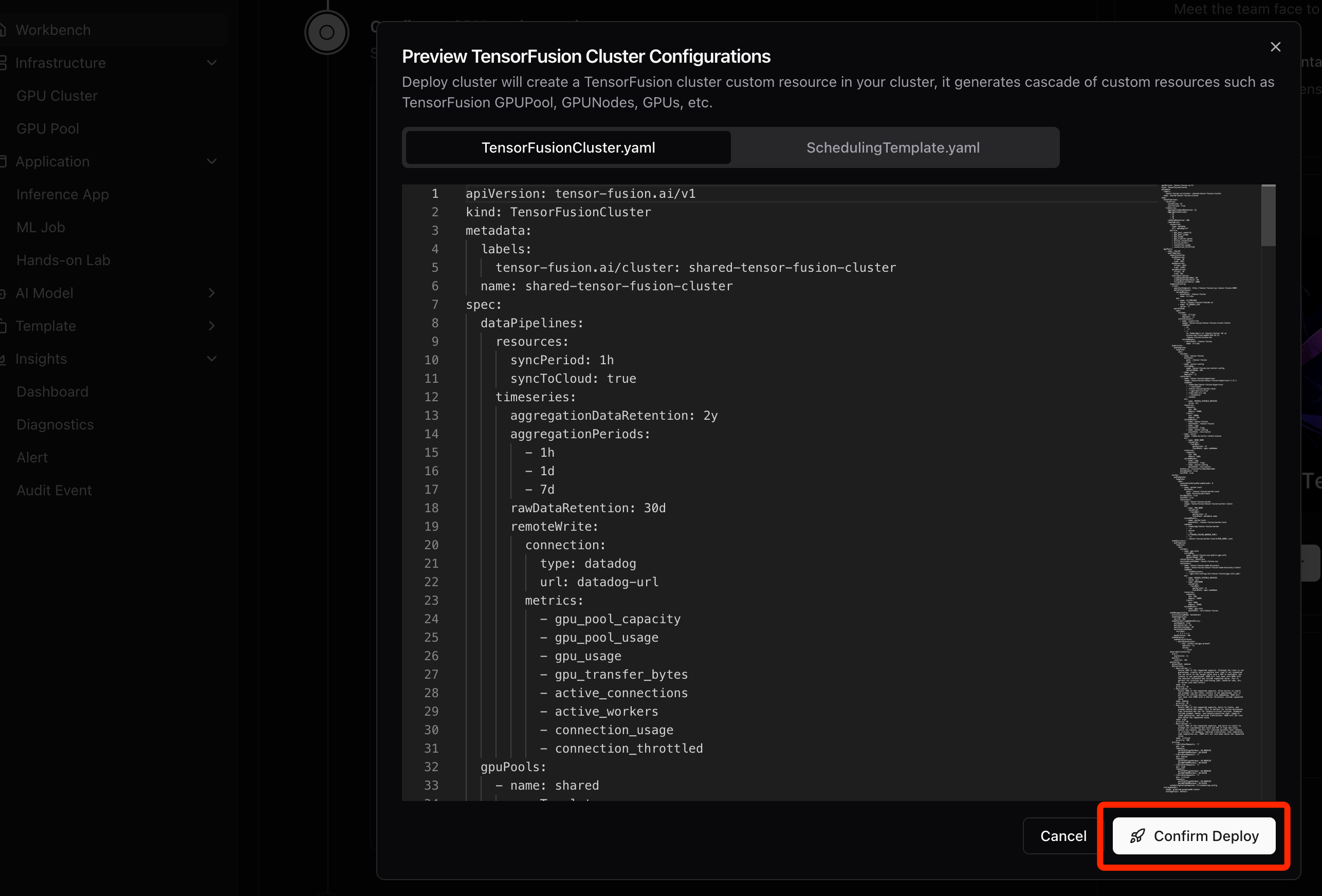
The Helm chart has already created a default cluster named tensor-fusion. Keep that name in the form so the console updates the existing cluster instead of creating a second one. A Kubernetes cluster should have only one TensorFusionCluster.
Step 3. Verify the installation
-
Check the system Pods:
kubectl get pods -n tensor-fusion-sys
kubectl get pods -n greptimedb
The
tensor-fusion-sys-controller-*Pod isRunning, and there is onehypervisor-<node-name>Pod for each GPU node. -
Check that TensorFusion has discovered the GPUs:
kubectl get tensorfusioncluster,gpupool
kubectl get gpunode,gpu
The cluster and pool reach phase
Running, and each physical GPU appears as aGPUresource with its TFLOPS and VRAM.If no hypervisor Pod or
GPUresource shows up, see Hypervisor Pods are missing. -
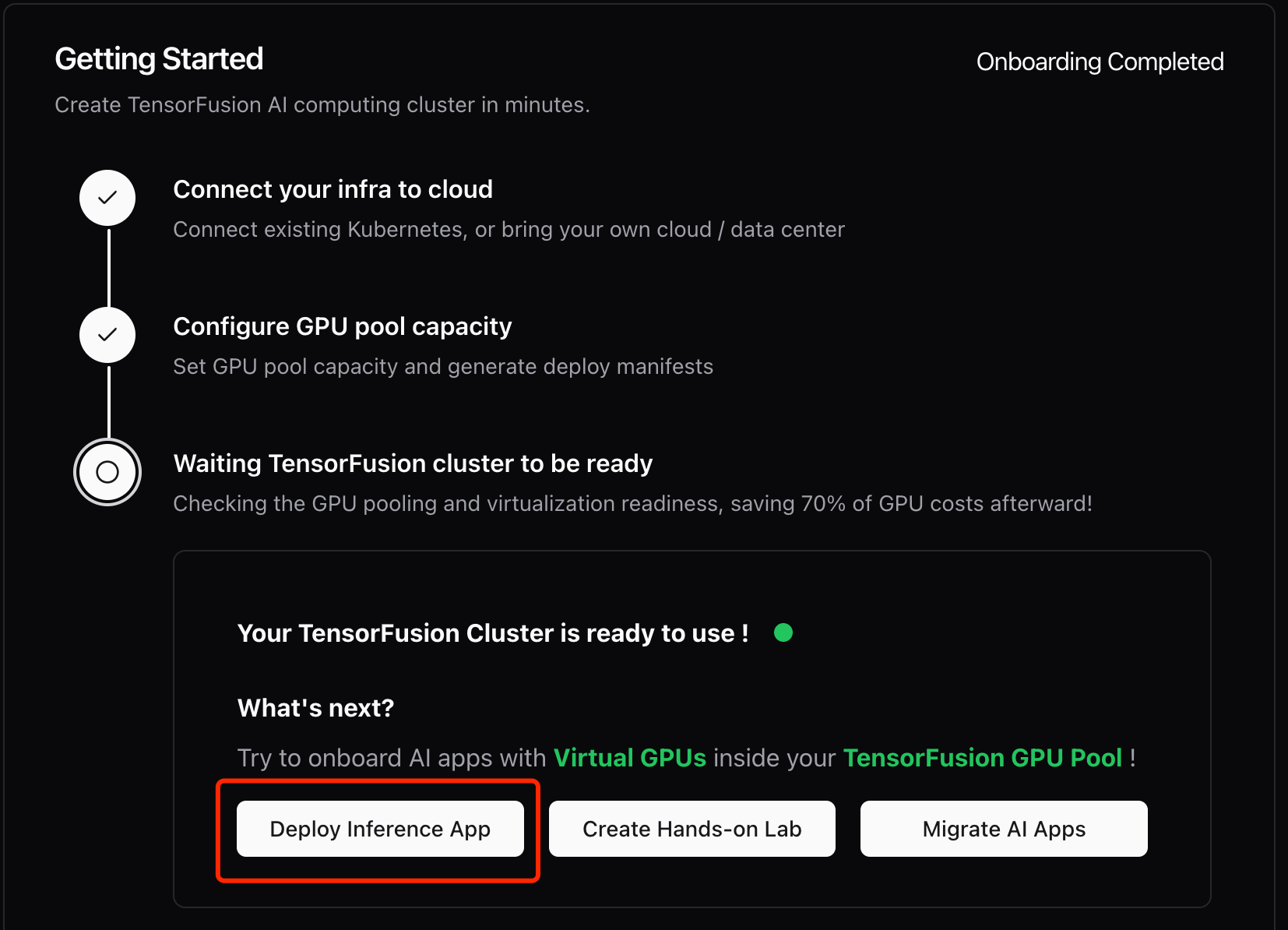
Deploy a small LLM as the test workload. Apply this Deployment, which serves Qwen3-0.6B with vLLM on a fraction of one GPU. The Deploy Inference App button in the console also starts a test app for you:
# qwen3-demo.yaml
apiVersion: apps/v1
kind: Deployment
metadata:
  name: qwen3-demo
  namespace: default
spec:
  replicas: 1
  progressDeadlineSeconds: 3600
  selector:
    matchLabels:
      app: qwen3-demo
  template:
    metadata:
      labels:
        app: qwen3-demo
        tensor-fusion.ai/enabled: "true"
      annotations:
        tensor-fusion.ai/tflops-request: "10"
        tensor-fusion.ai/tflops-limit: "30"
        tensor-fusion.ai/vram-request: "4Gi"
        tensor-fusion.ai/vram-limit: "5Gi"
    spec:
      containers:
        - name: app
          image: vllm/vllm-openai:v0.11.0
          command:
            - vllm
            - serve
            - Qwen/Qwen3-0.6B
            - --served-model-name
            - qwen3-0.6b
            - --port
            - "8000"
            - --dtype
            - half
            - --max-model-len
            - "2048"
            - --gpu-memory-utilization
            - "0.7"
            - --max-num-seqs
            - "32"
          env:
            - name: VLLM_USE_FLASHINFER_SAMPLER
              value: "0"
          ports:
            - name: http
              containerPort: 8000
          readinessProbe:
            httpGet:
              path: /health
              port: 8000
            periodSeconds: 5
            failureThreshold: 120
          volumeMounts:
            - name: dshm
              mountPath: /dev/shm
      volumes:
        - name: dshm
          emptyDir:
            medium: Memory
            sizeLimit: 2Gi
kubectl apply -f qwen3-demo.yamlThe label
tensor-fusion.ai/enabled: "true"hands the Pod to TensorFusion. The annotations request 10 TFLOPS and 4 GiB of VRAM from one GPU, and cap the Pod at 30 TFLOPS and 5 GiB. With no other annotations, the Pod runs on a GPU node in the default pool and shares the GPU withsoftisolation. The GPU needs at least 4 GiB of VRAM that is not yet allocated.vLLM reserves a fixed share of the GPU memory it sees when it starts.
--gpu-memory-utilization 0.7keeps that reservation at 70% of the 5 GiB limit, and--max-model-lenand--max-num-seqssize the server for a small test.VLLM_USE_FLASHINFER_SAMPLER=0keeps vLLM on its built-in sampler. -
Wait until the model server is ready:
kubectl rollout status deployment/qwen3-demo --timeout=30m
kubectl get pod -l app=qwen3-demo -o wide
The first start pulls the vLLM image, which is several gigabytes, and downloads the model weights from Hugging Face, so it can take several minutes. The Pod becomes
Readyonly after the model is loaded into GPU memory and/healthanswers. To follow the progress, runkubectl logs -f deployment/qwen3-demo.If the node cannot reach Hugging Face, add the environment variable
HF_ENDPOINTwith the address of a mirror to the container. -
Check the vGPU from inside the container:
kubectl exec deploy/qwen3-demo -- nvidia-sminvidia-smireports about 5120 MiB of total memory, the VRAM limit, instead of the full card. The vLLM process appears with the memory it reserved. -
Send a chat completion to the model:
kubectl port-forward deploy/qwen3-demo 8000:8000 &

curl -s http://127.0.0.1:8000/v1/chat/completions \
  -H 'Content-Type: application/json' \
  -d '{
    "model": "qwen3-0.6b",
    "max_tokens": 80,
    "messages": [{"role": "user", "content": "Give me a short introduction to large language model."}],
    "chat_template_kwargs": {"enable_thinking": false}
  }'

kill %1   # stop the port-forward
The response is an OpenAI-style JSON object.
choices[0].message.contentholds the answer that Qwen3-0.6B generated, andusage.completion_tokensis greater than zero. This is the check that matters: a Pod inRunningstate does not prove the GPU path works, but a completed inference means the model was loaded into the vGPU's memory and every token was computed through TensorFusion. -
Remove the test workload:
kubectl delete deployment qwen3-demo
Uninstall
The uninstall script removes everything TensorFusion created: all TensorFusion custom resources and CRDs, the controller, the webhook, the tensor-fusion-sys and greptimedb namespaces with their PVCs, and the TensorFusion labels on nodes. Vendor labels such as nvidia.com/gpu.present are kept. Workloads that run on TensorFusion vGPUs lose their GPU, so move or stop them first.
curl -sfLO https://raw.githubusercontent.com/NexusGPU/tensor-fusion/main/scripts/uninstall.sh
bash uninstall.sh --help   # shows the options and what gets deleted
bash uninstall.sh
The script acts on the current kubectl context and does not ask for confirmation. It waits for resources to be deleted, which can take several minutes.
Next steps
- Create Workload: size requests and run your own application on a vGPU.
- Workload annotation reference: every Pod annotation.
- Production-Grade Deployment: high availability and an external GreptimeDB.
- CRD reference: the resource definitions.